Ready to play
Your club + Continue
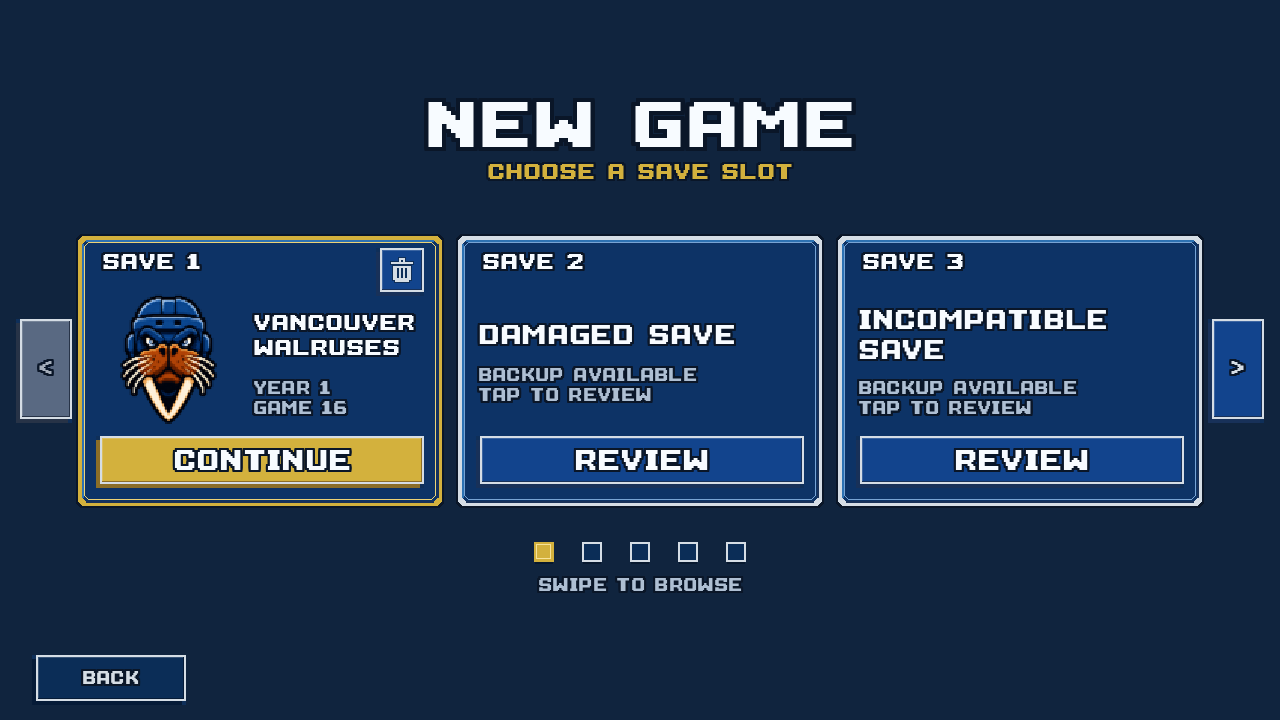
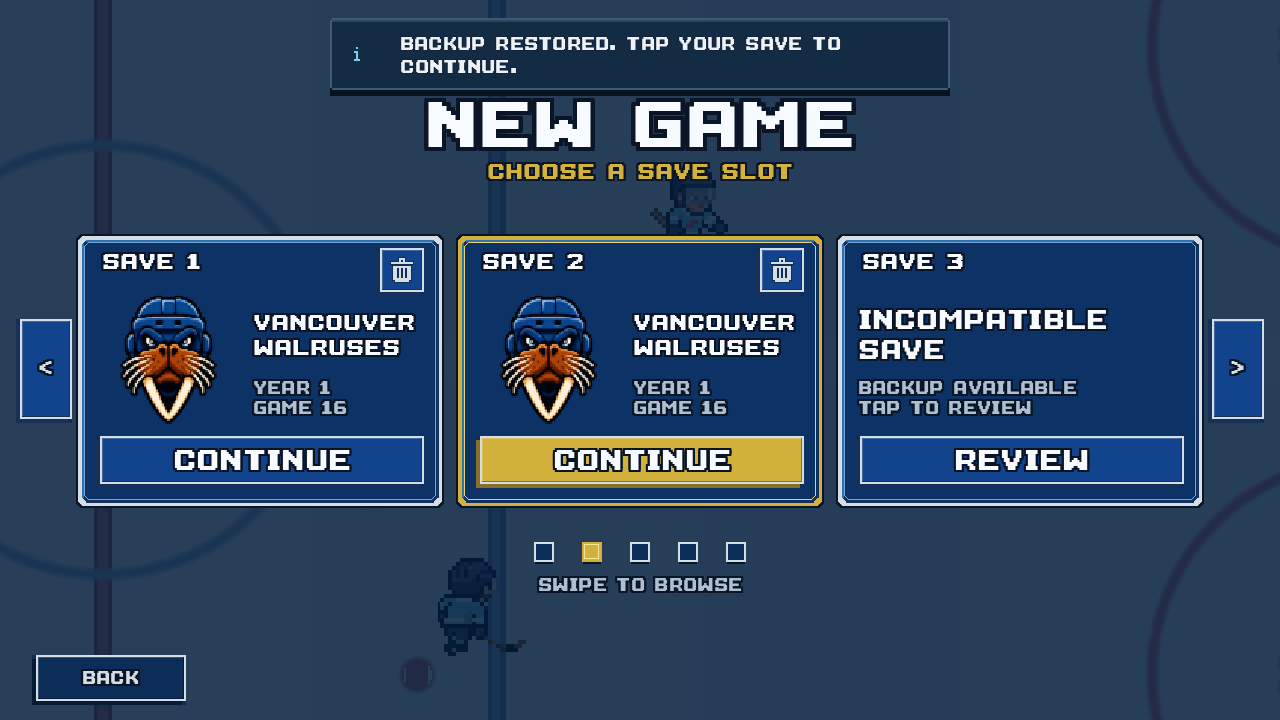
A readable save shows your club, year, and game number. Tap Continue on that slot to return to your franchise.
PixelPuck keeps franchise progress on your device in five save slots. Use this guide to read a warning and decide what to do next.
Five local slots
Open Saved Games on the title screen to see your slots. The arrows let you browse all five. A warning keeps its slot occupied so a new franchise cannot silently replace it.
Ready to play
A readable save shows your club, year, and game number. Tap Continue on that slot to return to your franchise.
Room for a franchise
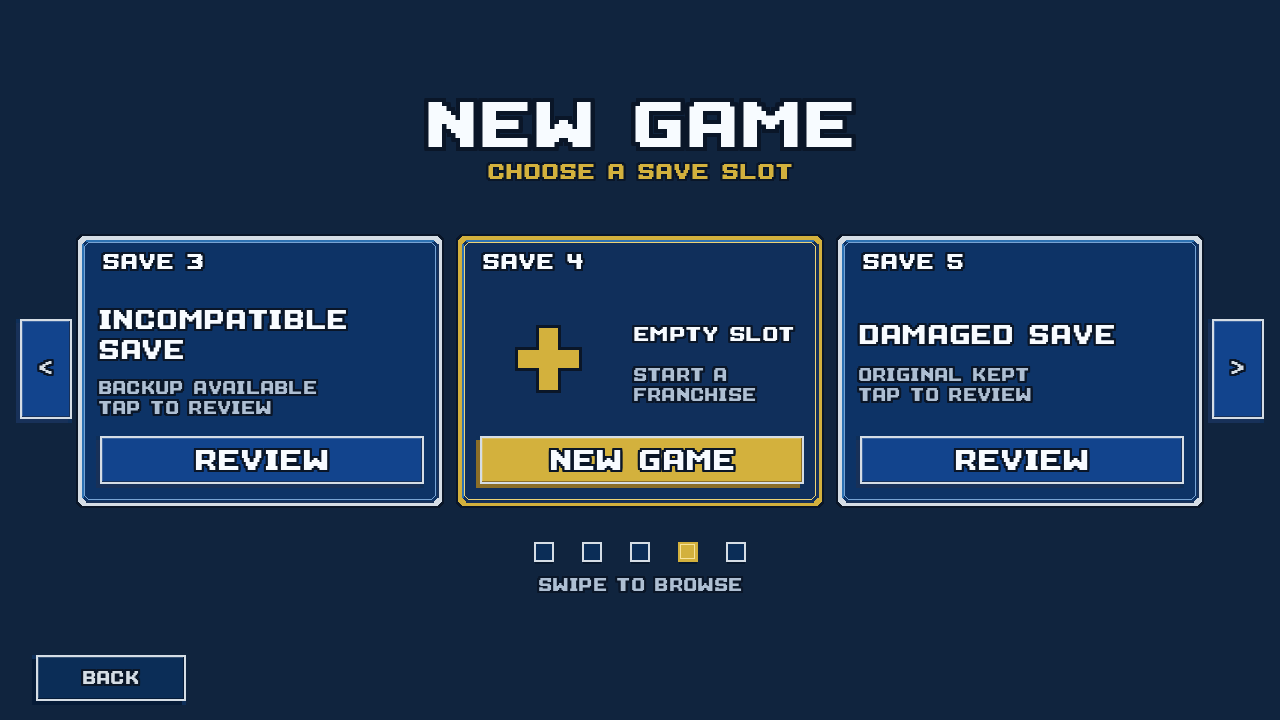
There is no active franchise here. New Game starts a new one. You can use an empty slot while keeping a different slot with a warning.
Could not be read
The game cannot read this save. Backup Available means a readable backup was found. Tap Review to see your choices.
Version mismatch
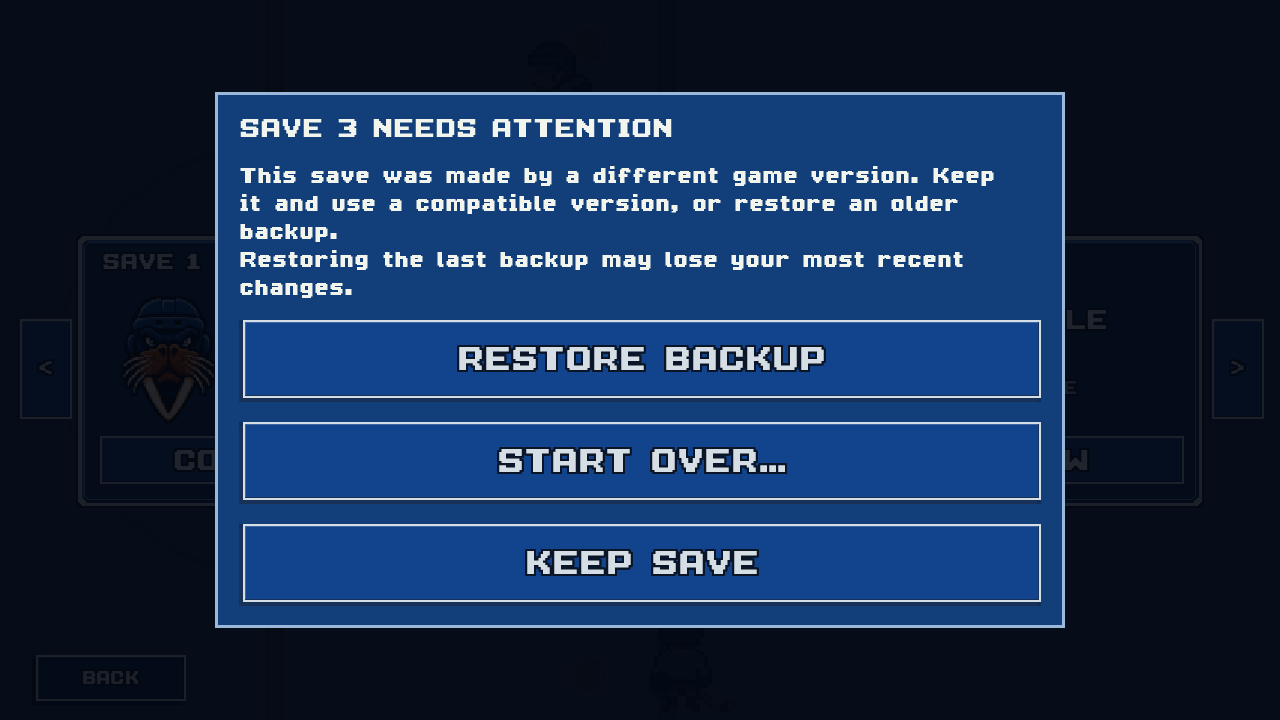
This game version does not support the save’s format. Tap Review. You can keep it for a compatible version or restore a readable backup if one is available.
Starting in an empty slot? Read about franchise mode.
The recovery choices
In Saved Games, find the affected slot and tap Review. Opening this dialog does not replace your save.
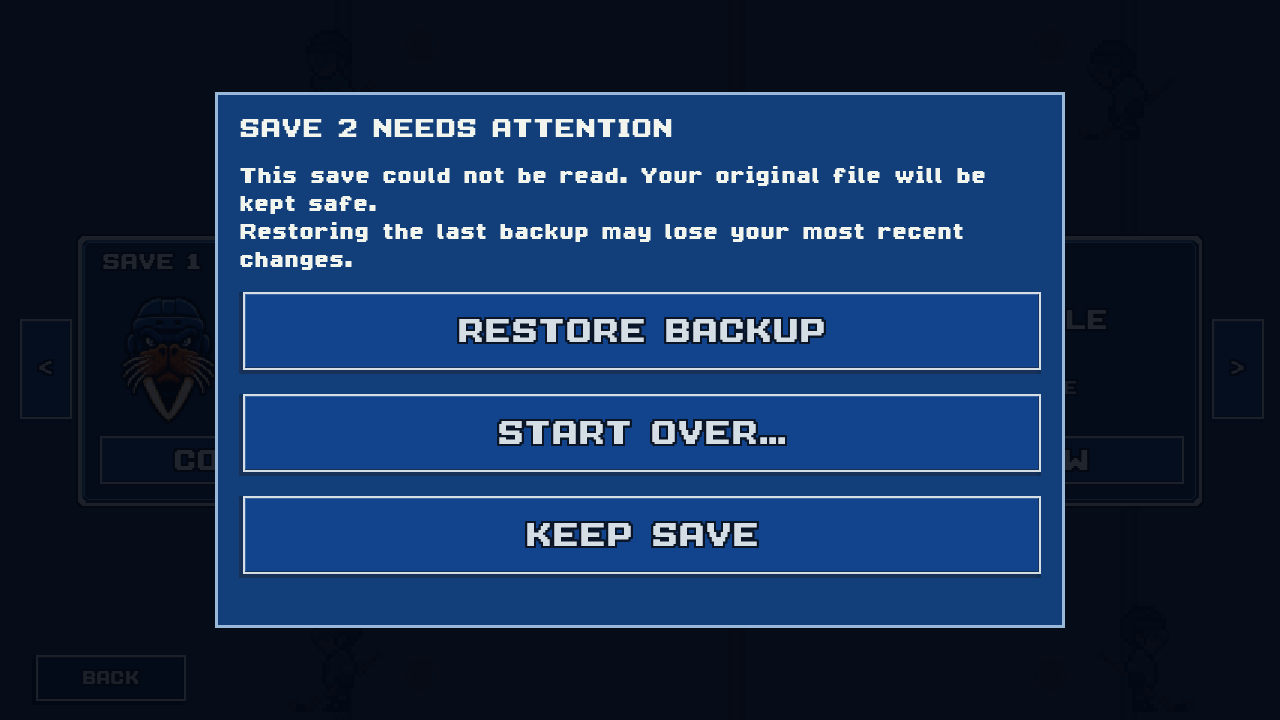
Closes the dialog and leaves the save unchanged. Choose this if you are unsure. You can contact support or use another empty slot.
Appears only when a readable backup is available. Restoring an earlier backup may discard more recent progress. Choose it only if you accept returning to that revision.
The game preserves the original file, then replaces the active save with the backup. After a successful restore, it returns to the slots. Tap Continue on the restored slot.
Successful saves keep the preceding readable revision as a local backup. The first save creates a backup too. This is not a browsable history of every save. Some damaged franchises cannot be recovered.
See how statistics and records work within your franchise.
Keep the slot if you are unsure. These examples show what the other messages mean.
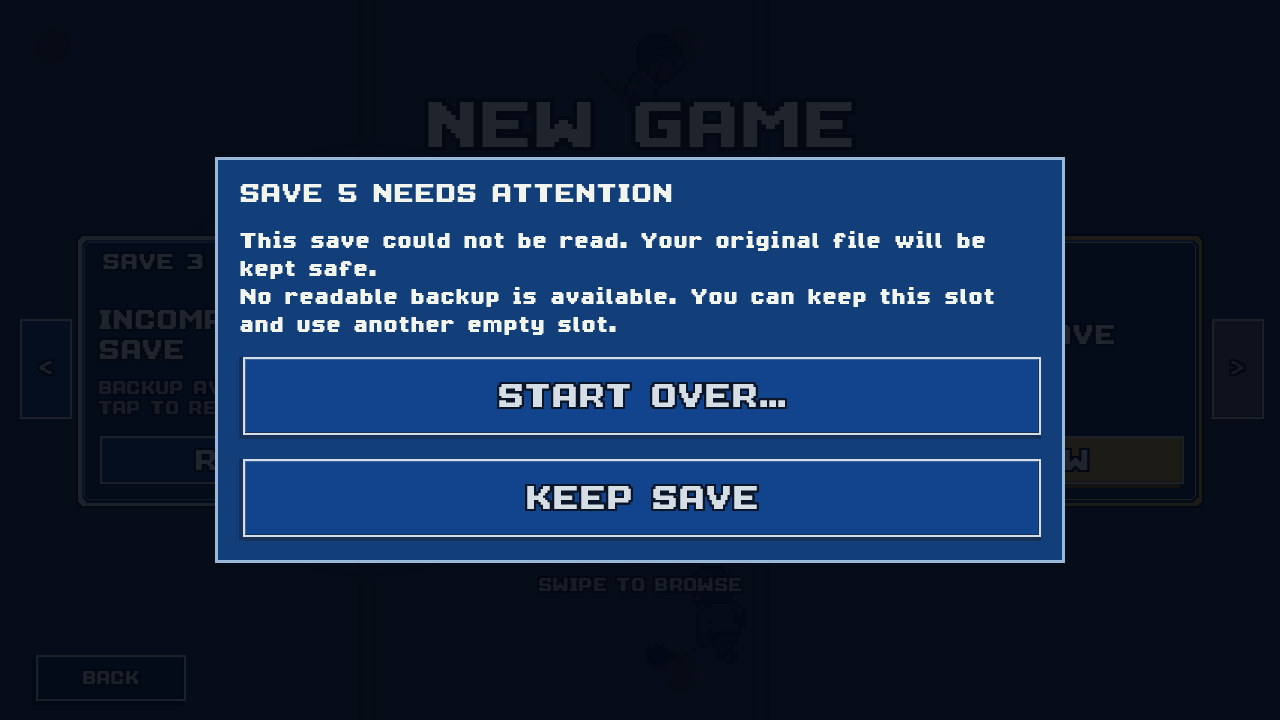
The game has not found a readable backup. Original Kept does not mean the original can be loaded. Choose Keep Save to leave it in place, then contact support. Another empty slot can still be used.
Choose Keep Save while you check which version can read it. Support can help you check your build. An available backup may be older, so restoring it may discard more recent progress.
The change did not finish. The dialog asks you to free some device storage and try again, or keep the slot and use another. Do not delete PixelPuck to make room. Contact support if the warning keeps appearing.
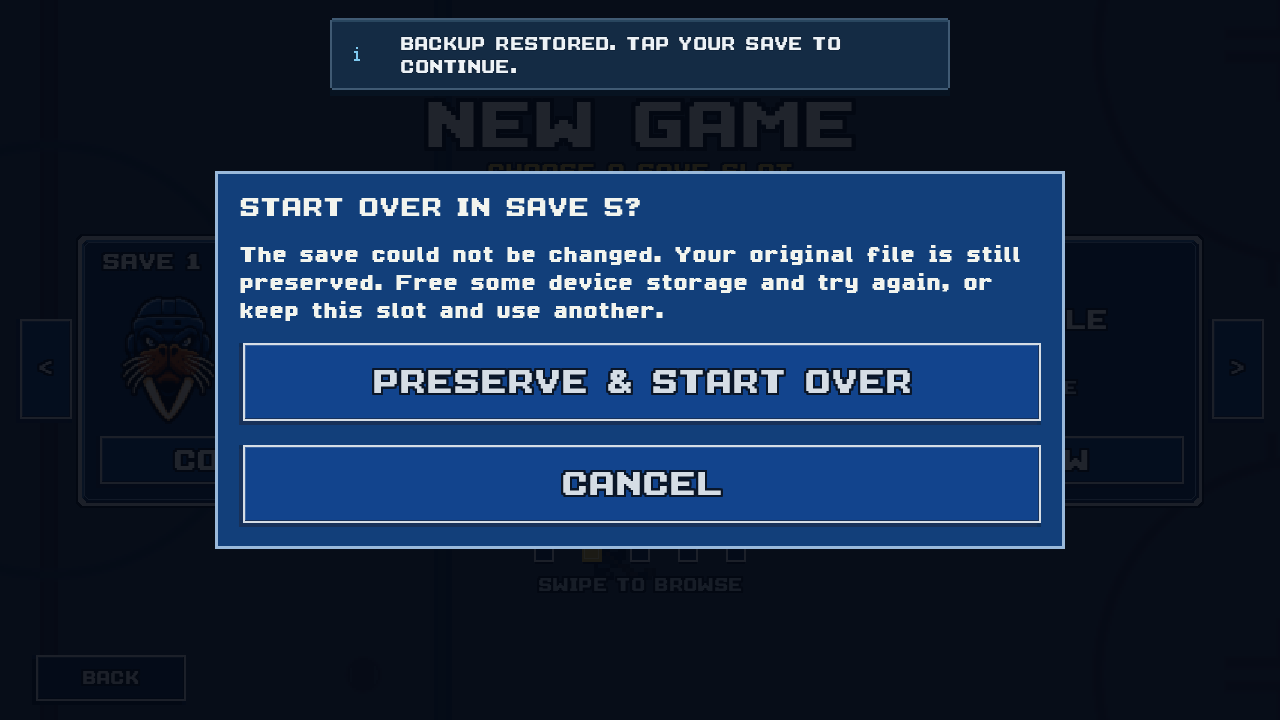
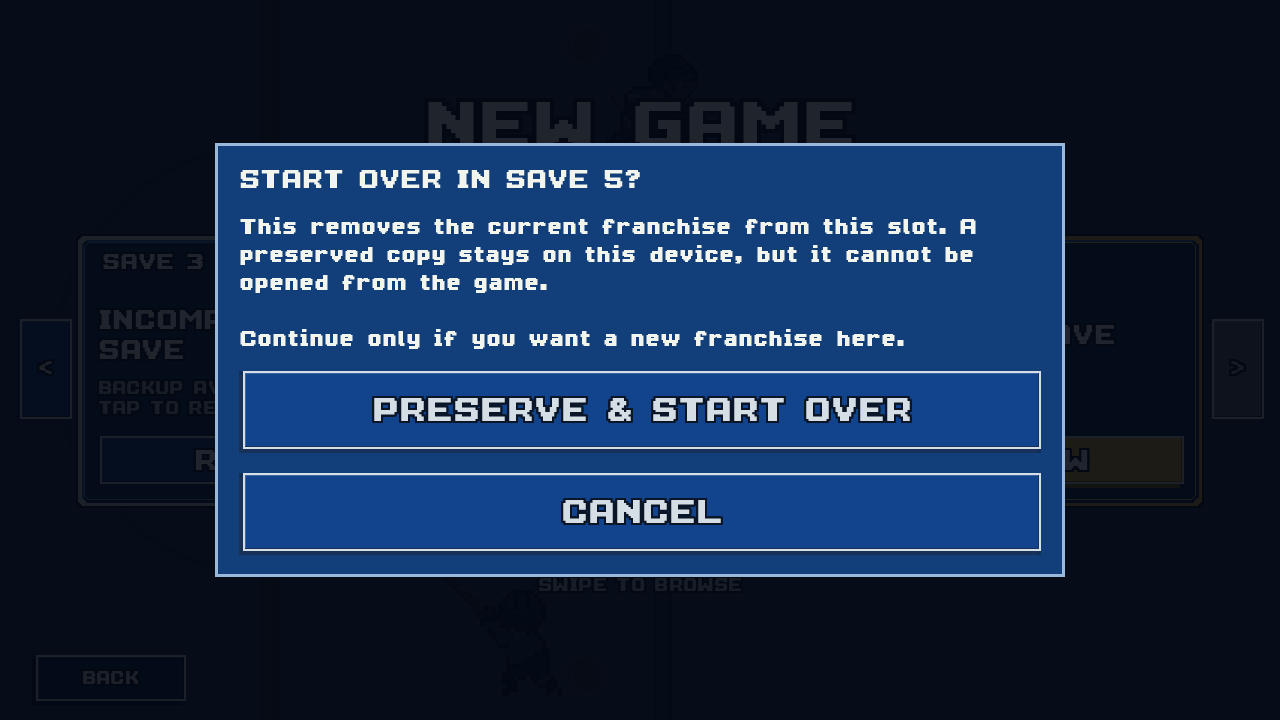
Start Over… opens another confirmation. Preserve & Start Over removes the current franchise from the active slot so you can start a new one. Cancel leaves it unchanged.
The game first preserves the original save and any backup on the device. Those copies cannot be browsed or restored through the game. This starts over. It does not recover your franchise. Contact support before replacing a slot if you want to keep its progress.
Local storage
The current game has no in-game cloud sync or account-based save transfer. Your franchise does not automatically follow you to another device through PixelPuck.
Matches and franchise mode work offline. Local recovery backups stay on the same device. Device backups are separate and depend on your operating system and backup settings.
Read about playing PixelPuck offline.
Read the privacy policy for local storage and optional diagnostics, or privacy choices for deletion and device backup details.
PixelPuck is in development for iPhone. There is no public App Store release date yet. You can email the developer about future testing opportunities. Android is planned, with no release date announced.
Email about testingOpens your email app.