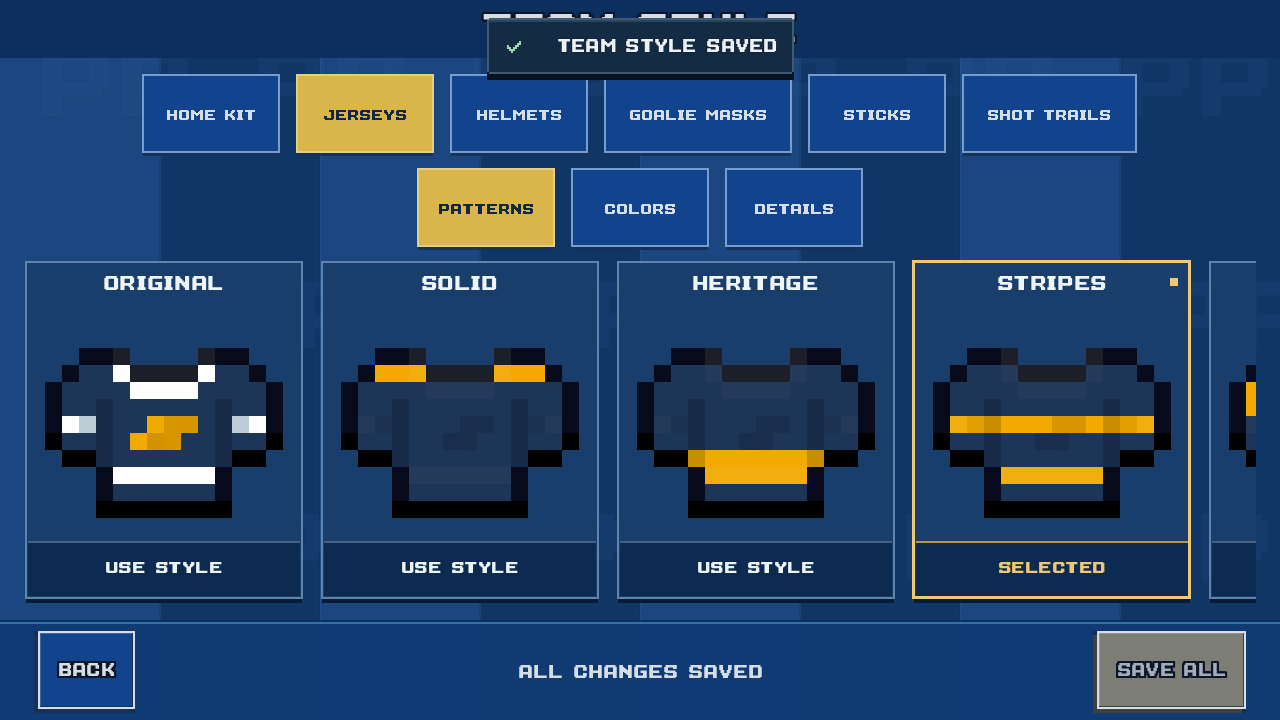


Home kit · Stripes
Navy and gold
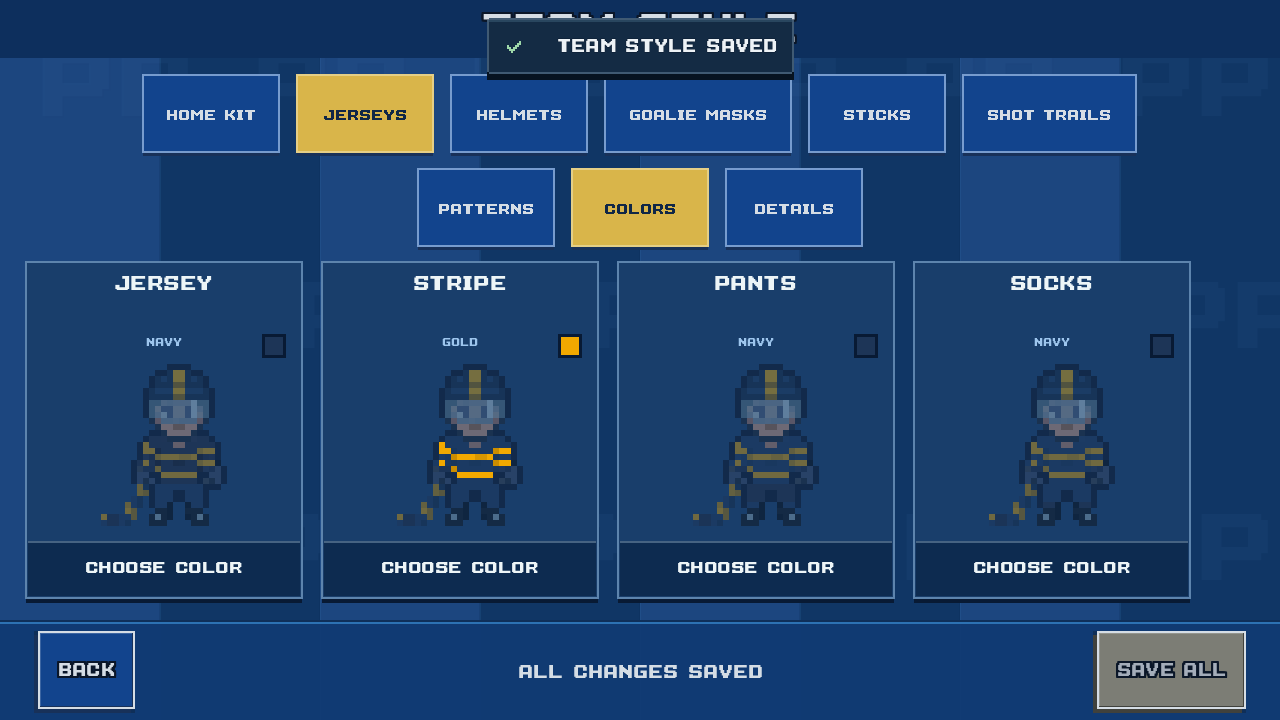
Gold stripes across a navy jersey, with navy pants and socks.
- Jersey
- Navy
- Stripe
- Gold
- Pants
- Navy
- Socks
- Navy
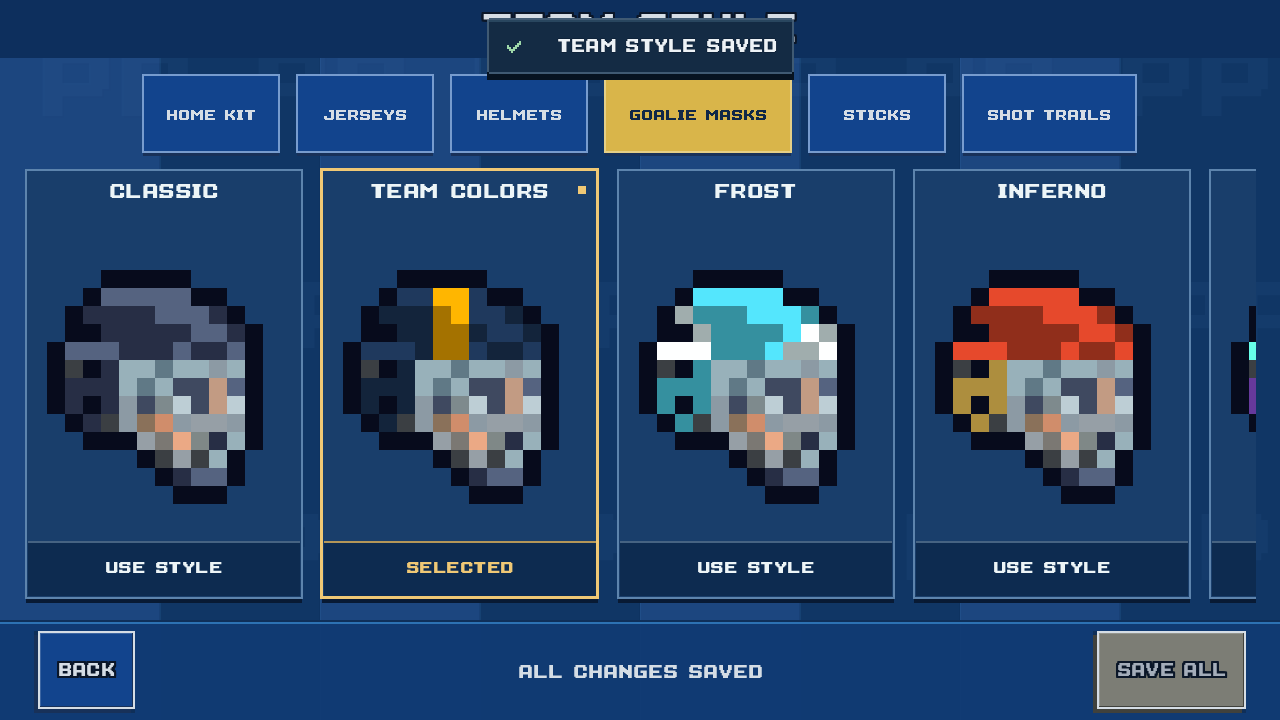
Helmet: Team Colors. Stick: Team Colors. Goalie mask: Team Colors.
Give your club its own colors. Build home, away, alternate, and throwback kits, then choose the outfit your team wears into a match.
Website preview
Choose a sample kit to see its skaters, goalie, and game screens. This preview does not change a game save.
Home kit · Stripes
Gold stripes across a navy jersey, with navy pants and socks.
Helmet: Team Colors. Stick: Team Colors. Goalie mask: Team Colors.


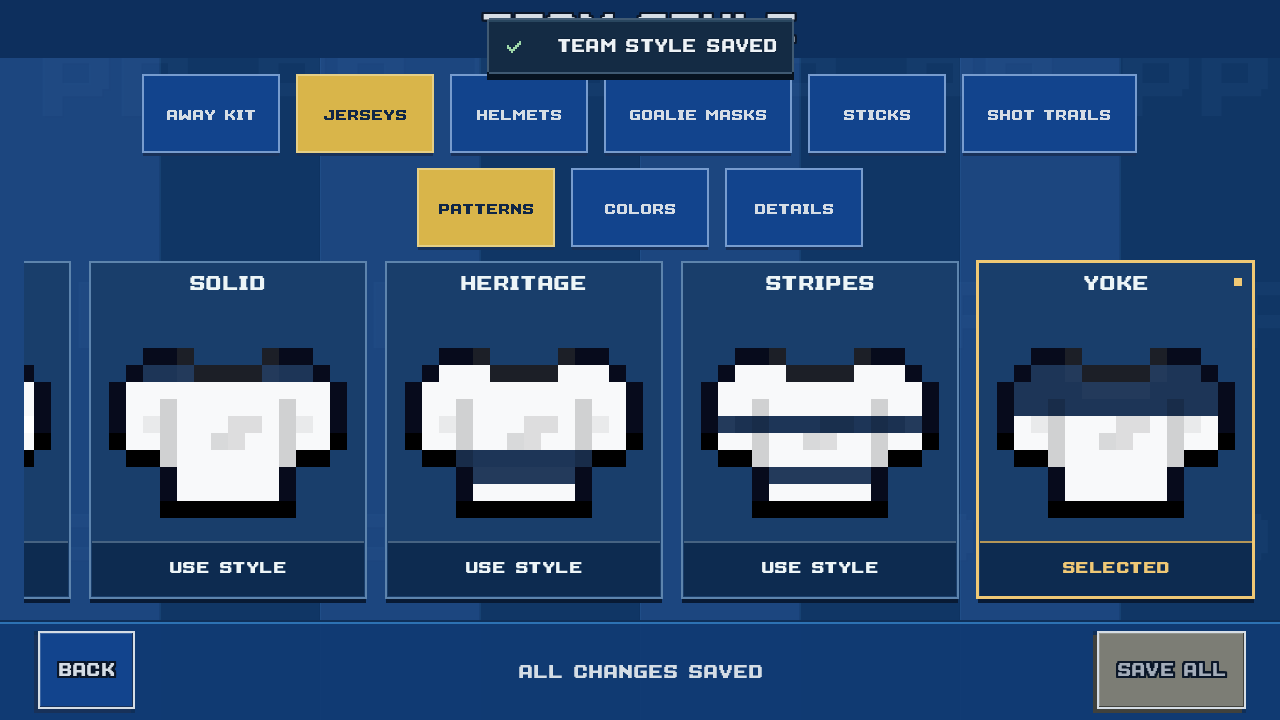
Away kit · Yoke
A white jersey with navy shoulders, navy pants, and white socks.
Helmet: White. Stick: Classic. Goalie mask: White.


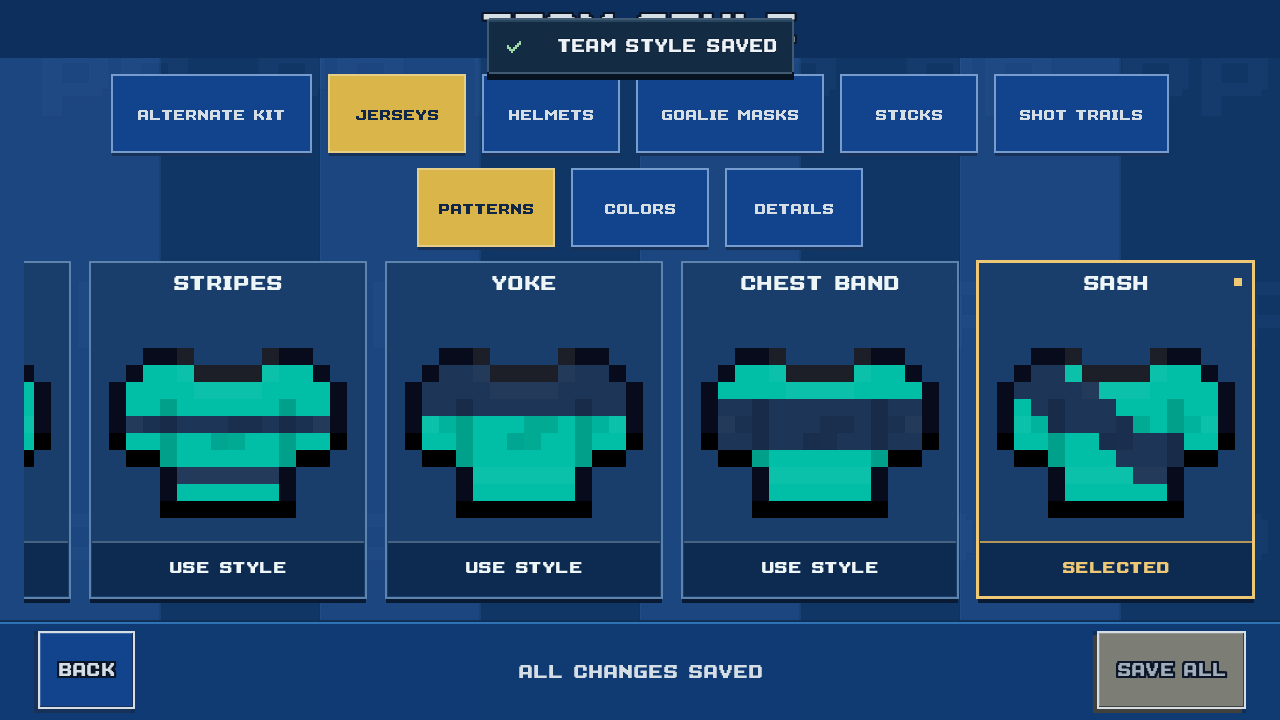
Alternate kit · Sash
A navy sash crosses the teal jersey. Frost equipment adds cyan and white.
Helmet: Frost. Stick: Frost. Goalie mask: Frost.


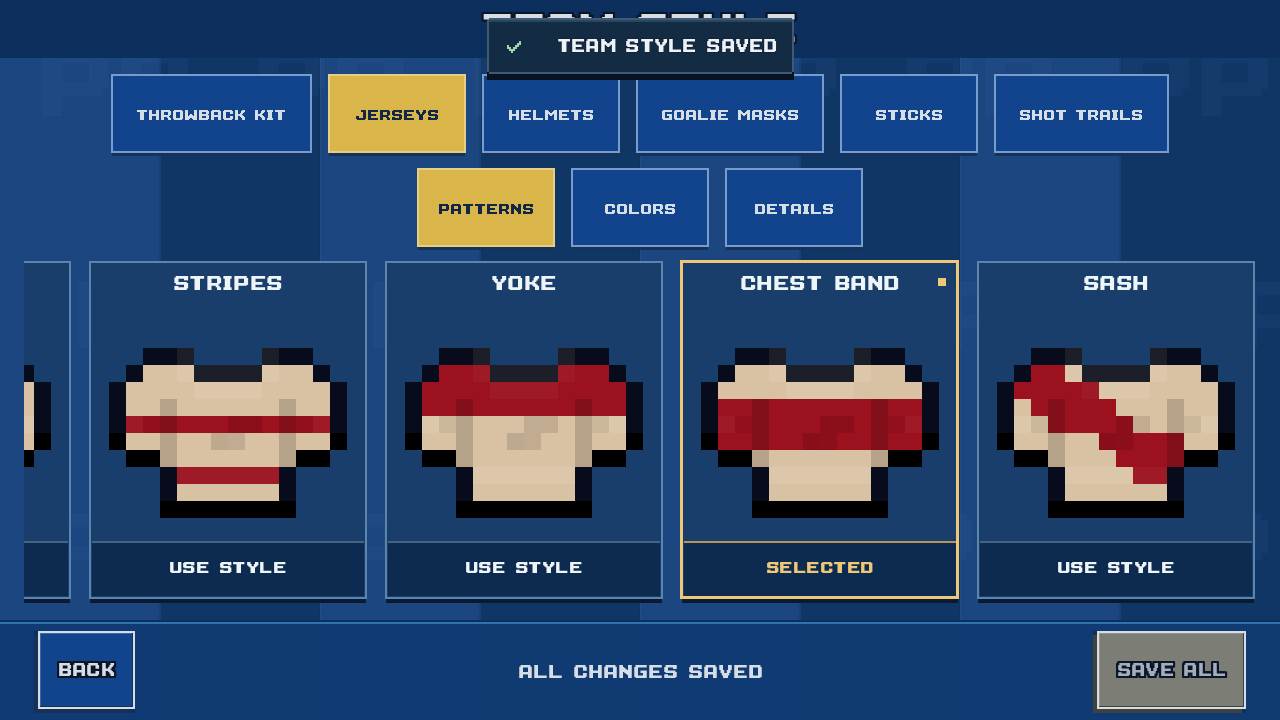
Throwback kit · Chest Band
A crimson chest band on tan, with a charcoal helmet and a wooden stick.
Helmet: Classic. Stick: Classic. Goalie mask: Inferno.
Real game art and screens from the development build. These four outfits were made for this sample Toronto club. They are examples, not the starting kits.
Your collection
Home, Away, Alternate, and Throwback each save their own pattern, colors, and equipment. Change each kit separately to give your club four different looks.
The slot names do not lock you to a pattern. A Throwback kit can use any of the seven patterns, just like Home or Away.
Pick the kit for your next game on the matchup screen. Saving a design in Team Style does not switch the kit you have selected for that match.
Browse the teams in PixelPuck to find a club to make your own.
Jerseys
These are the seven names in the current editor. Each sample below uses the same navy and gold colors.
 Original
 Solid
Solid Heritage
 Stripes
 Yoke
Yoke Chest Band
 Sash
SashThe editor offers 24 color swatches. Its four main controls are Jersey, Stripe, Pants, and Socks.
Stripe changes the jersey details together. Socks changes the sock base and stripes together. Original does not use the separate Pants control, so the editor disables it for that pattern.
In Details, you can turn the team crest and numbers on or off. Numbers have Block and Inline styles, plus their own color choice.
In a match
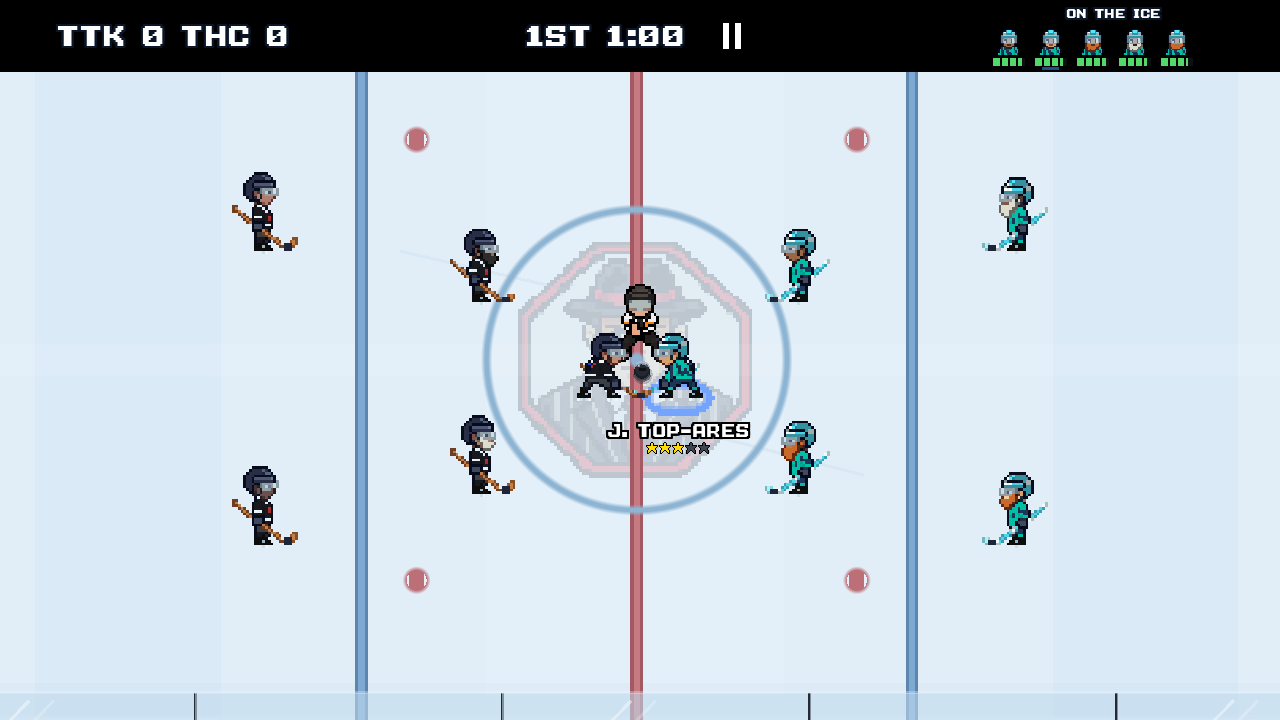
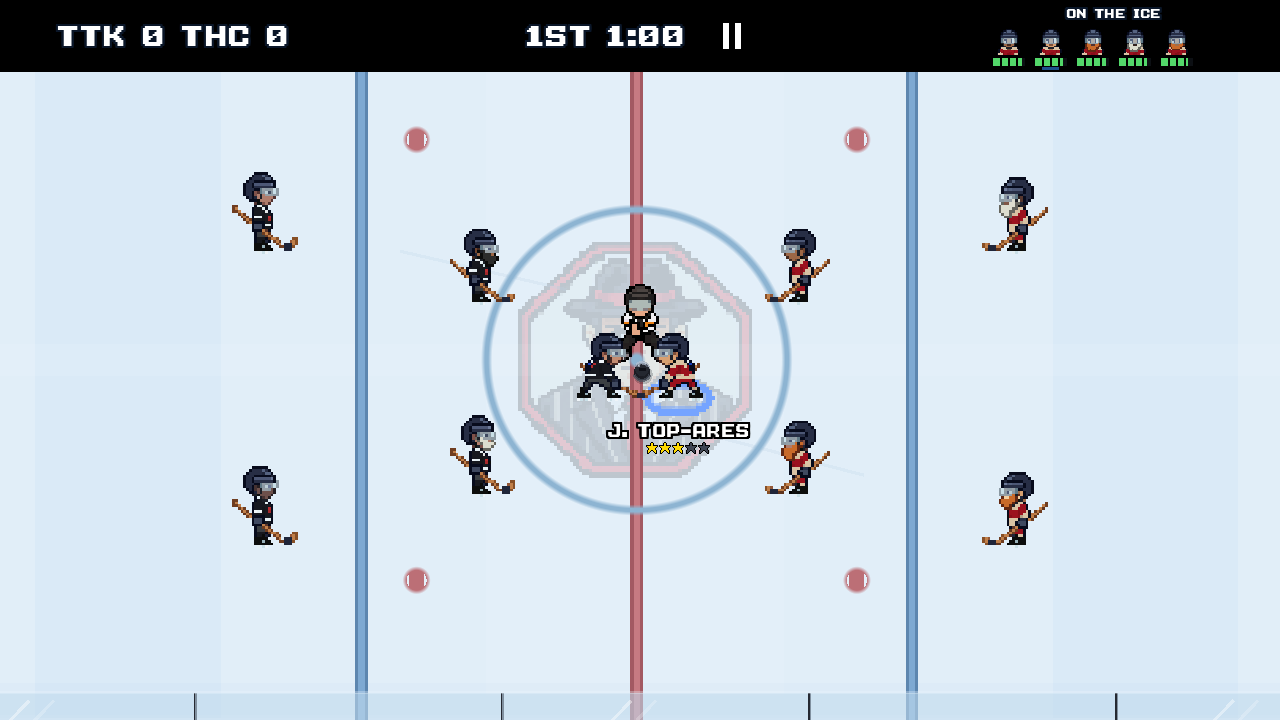
Compare the navy Home outfit with the white Away outfit. The camera, players, and rink stay in the same place, so you can see what the uniform changes.
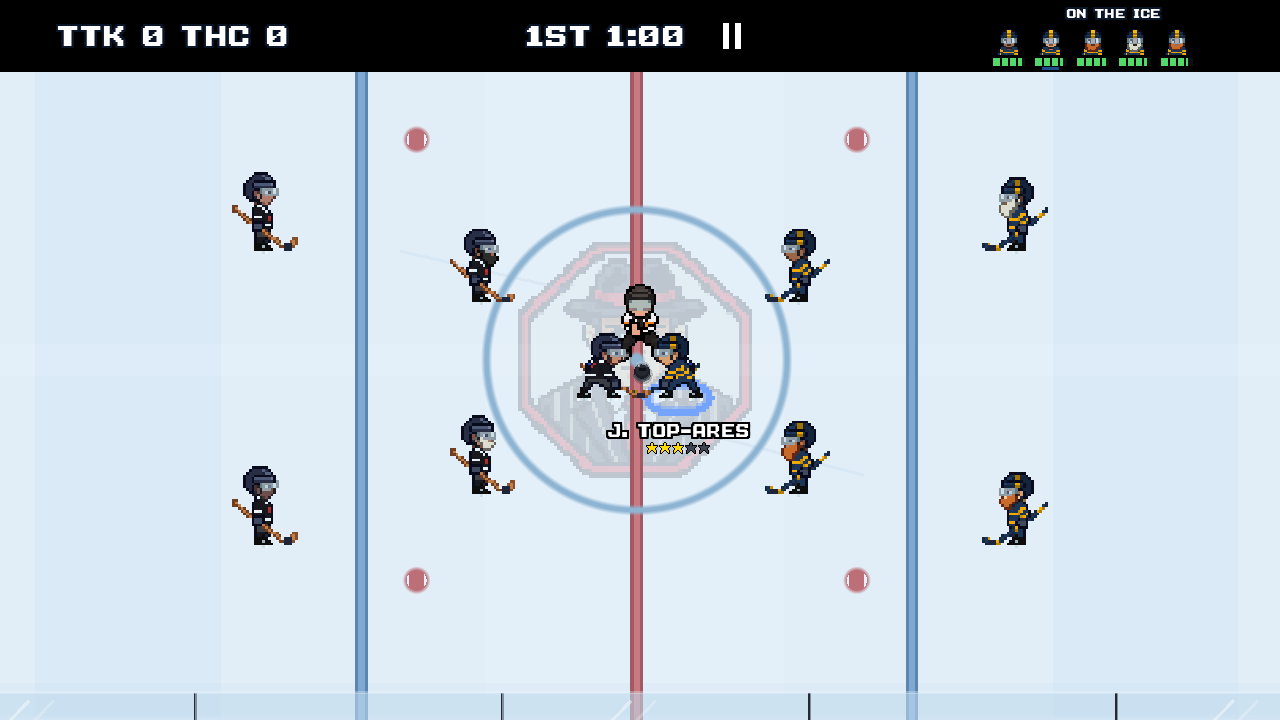
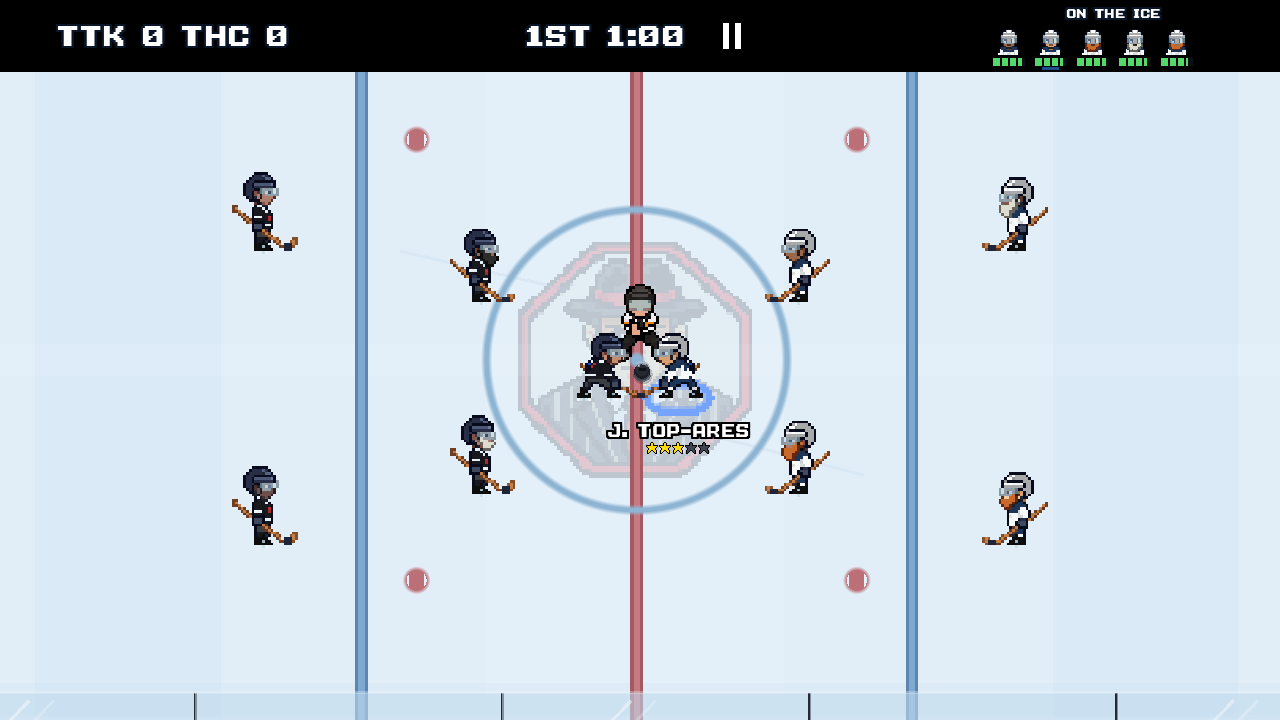
Crops from one paused development match. Only the sample club’s outfit changes. Open either image for the full screen.
For ice, boards, and the rest of the rink, visit the arena gallery.
Equipment
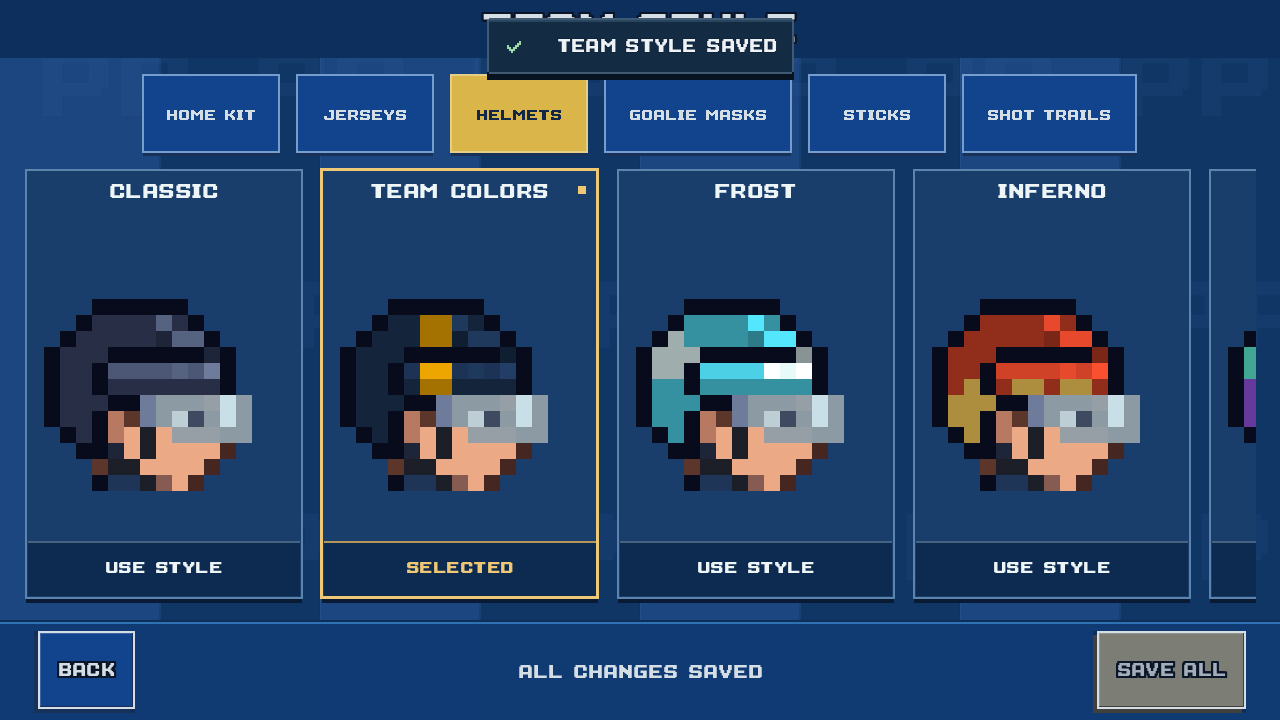
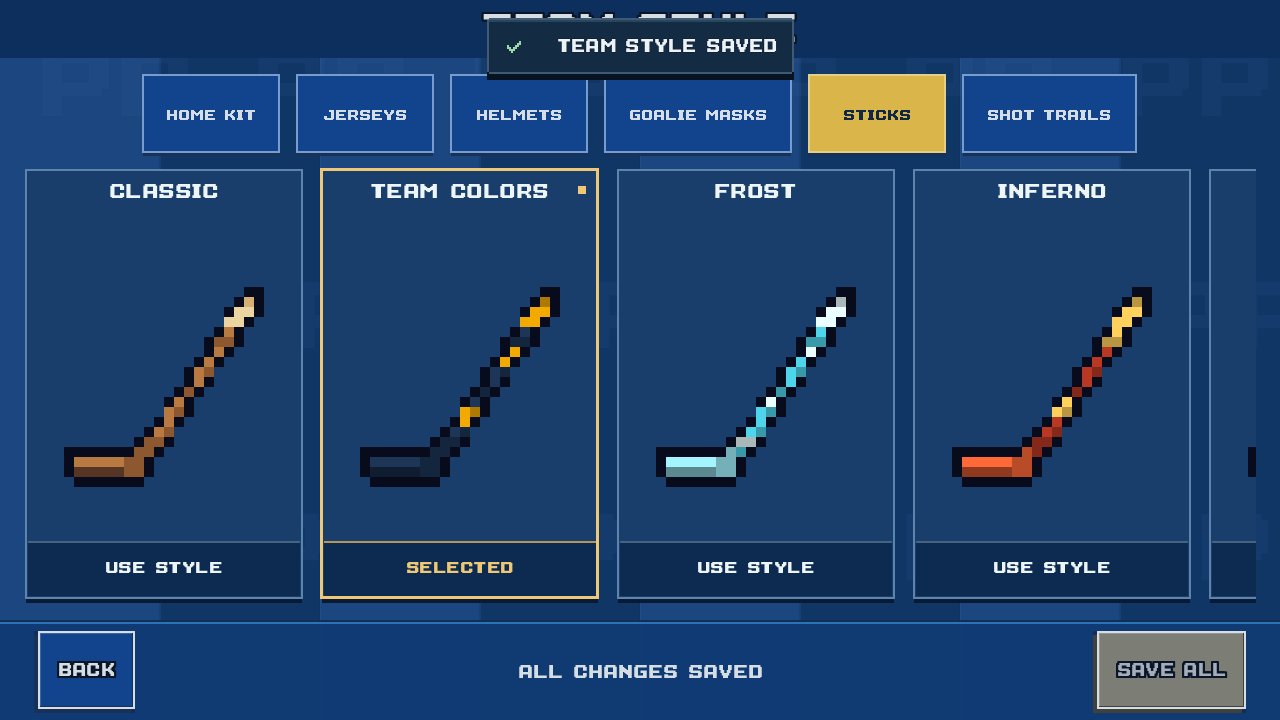
Each kit has separate choices for the skaters’ helmets, sticks, and goalie masks. These change the look of the equipment.


Use a solid color, a named finish, or Team Colors to match the jersey. The sample Home kit uses Team Colors. The Alternate kit uses Frost.
See the helmet choices

Classic has a wood finish. Other choices include Team Colors, Frost, and solid colors with black blade tape. Stick designs do not change shot stats.
See the stick choices

Choose the goalie’s mask separately from the skaters’ helmets. The sample Throwback kit pairs Classic helmets with a red and gold Inferno mask.
See the goalie mask choicesAll three menus offer Classic, Team Colors, Frost, Inferno, Aurora, Venom, Midas, and Candy, plus the 24 solid colors.
In the game
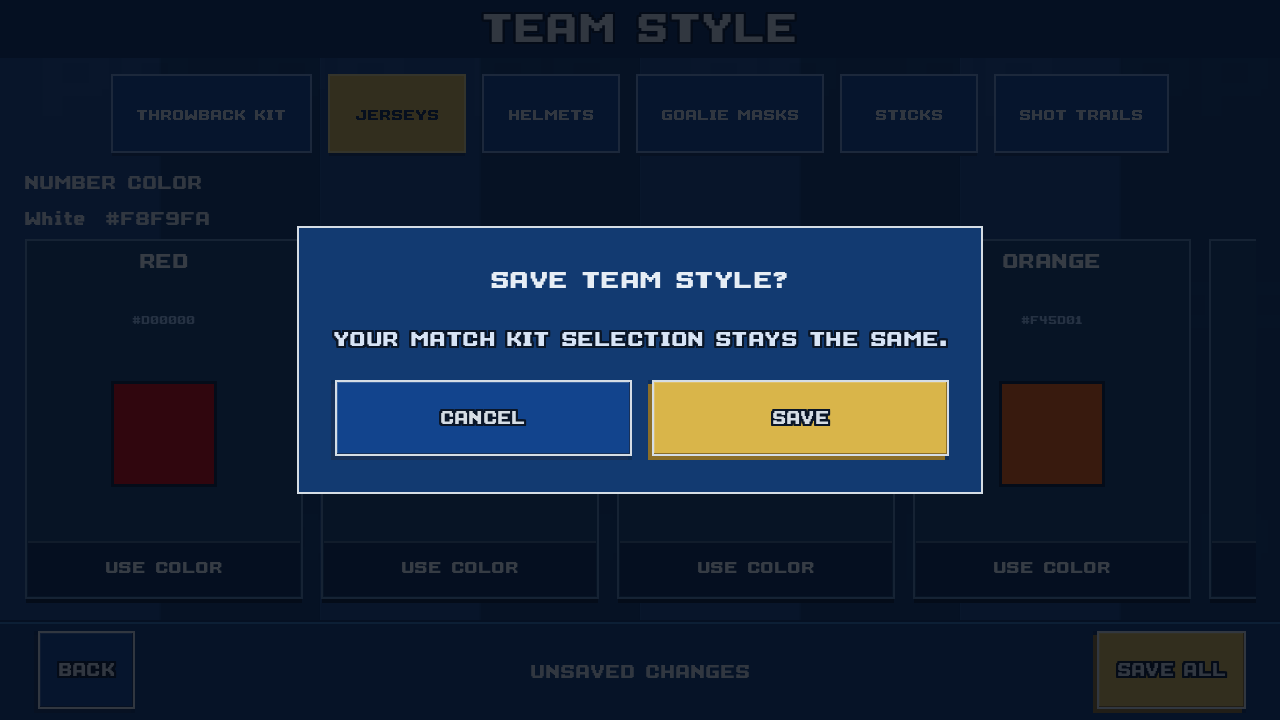
The current kit editor does not charge Club Funds or require a cosmetic unlock. It saves the collection to your active franchise.
PixelPuck is in development for iPhone. There is no public App Store release date yet. You can email the developer about future testing opportunities. Android is planned, with no release date announced.
Email about testingOpens your email app.